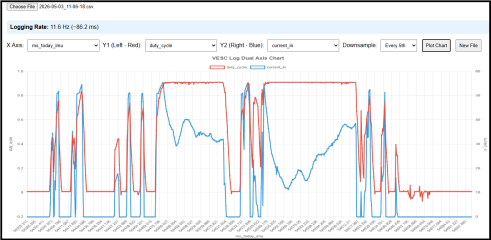
Here is the program.....it's just an HTML program.....
There is no app to load&run (avoid risk trojan or other malicious code in app).
This works on phone (tested with Samsung Android....did not test with Apple) and also works on desktop (you have to move log over to your PC though). Copy below code into notepad ands save it as an html type file. Email file over to your Vesc Tool phone.
<!DOCTYPE html>
<html lang="en">
<head>
<meta charset="UTF-8">
<meta name="viewport" content="width=device-width, initial-scale=1.0">
<title>VESC Log Dual Y Viewer</title>
<script src="
https://cdn.jsdelivr.net/npm/chart.js@4.4.1/dist/chart.umd.min.js"></script>
<script src="
https://cdn.jsdelivr.net/npm/papaparse@5.4.1/papaparse.min.js"></script>
<style>
body { font-family: Arial, sans-serif; margin: 15px; background: #f4f4f4; }
.container { max-width: 1350px; margin: auto; background: white; padding: 20px; border-radius: 10px; box-shadow: 0 0 15px rgba(0,0,0,0.1); }
canvas { max-width: 100%; height: 520px !important; }
.info { background: #e8f4fd; padding: 10px; border-radius: 6px; margin: 10px 0; }
select, button { margin: 5px; padding: 8px; }
</style>
</head>
<body>
<div class="container">
<h1>VESC Log Dual Y Chart</h1>
<input type="file" id="csvFile" accept=".csv"><br><br>
<div class="info" id="infoPanel" style="display:none;">
<strong>Logging Rate:</strong> <span id="rate"></span> Hz (~<span id="interval"></span> ms)
</div>
<div>
<label>X Axis: </label>
<select id="timeCol"></select>
<label>Y1 (Left - Red): </label>
<select id="y1Col"></select>
<label>Y2 (Right - Blue): </label>
<select id="y2Col"></select>
<label>Downsample: </label>
<select id="downsample">
<option value="1">None (full)</option>
<option value="5" selected>Every 5th</option>
<option value="10">Every 10th</option>
<option value="avg5">Avg of 5</option>
<option value="avg10">Avg of 10</option>
</select>
<button onclick="plotChart()">Plot Chart</button>
<button onclick="resetFile()">New File</button>
</div>
<canvas id="mainChart"></canvas>
</div>
<script>
let chartInstance = null;
let parsedData = null;
document.getElementById('csvFile').addEventListener('change', function(e) {
Papa.parse(e.target.files[0], {
header: true,
dynamicTyping: true,
skipEmptyLines: true,
complete: function(results) {
parsedData = results.data;
const headers = results.meta.fields || [];
const timeSelect = document.getElementById('timeCol');
const y1Select = document.getElementById('y1Col');
const y2Select = document.getElementById('y2Col');
timeSelect.innerHTML = y1Select.innerHTML = y2Select.innerHTML = '<option value="">Select...</option>';
headers.forEach(h => {
timeSelect.add(new Option(h, h));
y1Select.add(new Option(h, h));
y2Select.add(new Option(h, h));
});
// Auto-select common columns
headers.forEach((h, i) => {
const l = h.toLowerCase();
if (l.includes('ms_today')) timeSelect.selectedIndex = i + 1;
if (l.includes('current_in_setup') || l.includes('current_in')) y1Select.selectedIndex = i + 1;
if (l.includes('temp_mos_max') || l.includes('temp_motor')) y2Select.selectedIndex = i + 1;
});
document.getElementById('infoPanel').style.display = 'block';
alert('CSV loaded! Choose your columns and click Plot Chart.');
}
});
});
function plotChart() {
if (!parsedData) return alert('Please load a CSV file first.');
const timeCol = document.getElementById('timeCol').value;
const y1Col = document.getElementById('y1Col').value;
const y2Col = document.getElementById('y2Col').value;
const dsMode = document.getElementById('downsample').value;
if (!timeCol || !y1Col) return alert('Please select at least X and Y1.');
let timeRaw = [], y1Data = [], y2Data = [];
parsedData.forEach(row => {
if (row[timeCol] != null && row[y1Col] != null) {
timeRaw.push(row[timeCol]);
y1Data.push(row[y1Col]);
if (y2Col && row[y2Col] != null) y2Data.push(row[y2Col]);
}
});
// Downsampling
let finalTime = timeRaw.map(t => t / 1000); // seconds
let finalY1 = y1Data;
let finalY2 = y2Data.length ? y2Data : null;
if (dsMode !== "1") {
const n = parseInt(dsMode) || 5;
finalTime = [];
finalY1 = [];
finalY2 = y2Col ? [] : null;
if (dsMode.startsWith('avg')) {
const group = parseInt(dsMode.replace('avg',''));
for (let i = 0; i < y1Data.length; i += group) {
const sliceY1 = y1Data.slice(i, i + group);
finalY1.push(sliceY1.reduce((a,b)=>a+b,0) / sliceY1.length);
if (finalY2) {
const sliceY2 = y2Data.slice(i, i + group);
finalY2.push(sliceY2.reduce((a,b)=>a+b,0) / sliceY2.length);
}
finalTime.push(timeRaw
/ 1000);
}
} else {
for (let i = 0; i < y1Data.length; i += n) {
finalY1.push(y1Data);
if (finalY2) finalY2.push(y2Data);
finalTime.push(timeRaw / 1000);
}
}
}
// Update rate display
if (timeRaw.length > 1) {
const avgMs = (timeRaw[timeRaw.length-1] - timeRaw[0]) / (timeRaw.length - 1);
document.getElementById('interval').textContent = avgMs.toFixed(1);
document.getElementById('rate').textContent = (1000 / avgMs).toFixed(1);
}
if (chartInstance) chartInstance.destroy();
chartInstance = new Chart(document.getElementById('mainChart'), {
type: 'line',
data: {
labels: finalTime,
datasets: [
{
label: y1Col,
data: finalY1,
borderColor: '#e74c3c',
backgroundColor: 'rgba(231, 76, 60, 0.1)',
borderWidth: 2.5,
tension: 0.1,
pointRadius: 0.5,
yAxisID: 'y'
},
...(y2Col ? [{
label: y2Col,
data: finalY2,
borderColor: '#3498db',
backgroundColor: 'rgba(52, 152, 219, 0.1)',
borderWidth: 2.5,
tension: 0.1,
pointRadius: 0.5,
yAxisID: 'y1'
}] : [])
]
},
options: {
responsive: true,
maintainAspectRatio: false,
scales: {
x: {
title: { display: true, text: timeCol }
},
y: {
type: 'linear',
position: 'left',
title: { display: true, text: y1Col }
},
y1: {
type: 'linear',
position: 'right',
title: { display: true, text: y2Col || '' },
grid: { drawOnChartArea: false }
}
},
plugins: {
title: { display: true, text: 'VESC Log Dual Axis Chart', font: {size: 16} },
legend: { position: 'top' }
}
}
});
}
function resetFile() {
location.reload();
}
</script>
</body>
</html>